How to Use CleoSocial Quiet Hours: Take Your Evenings Back
How do CleoSocial Quiet Hours work? You set a window, the app goes quiet — no notifications, no pull back in. Here is how to set it up, when to use it, and...
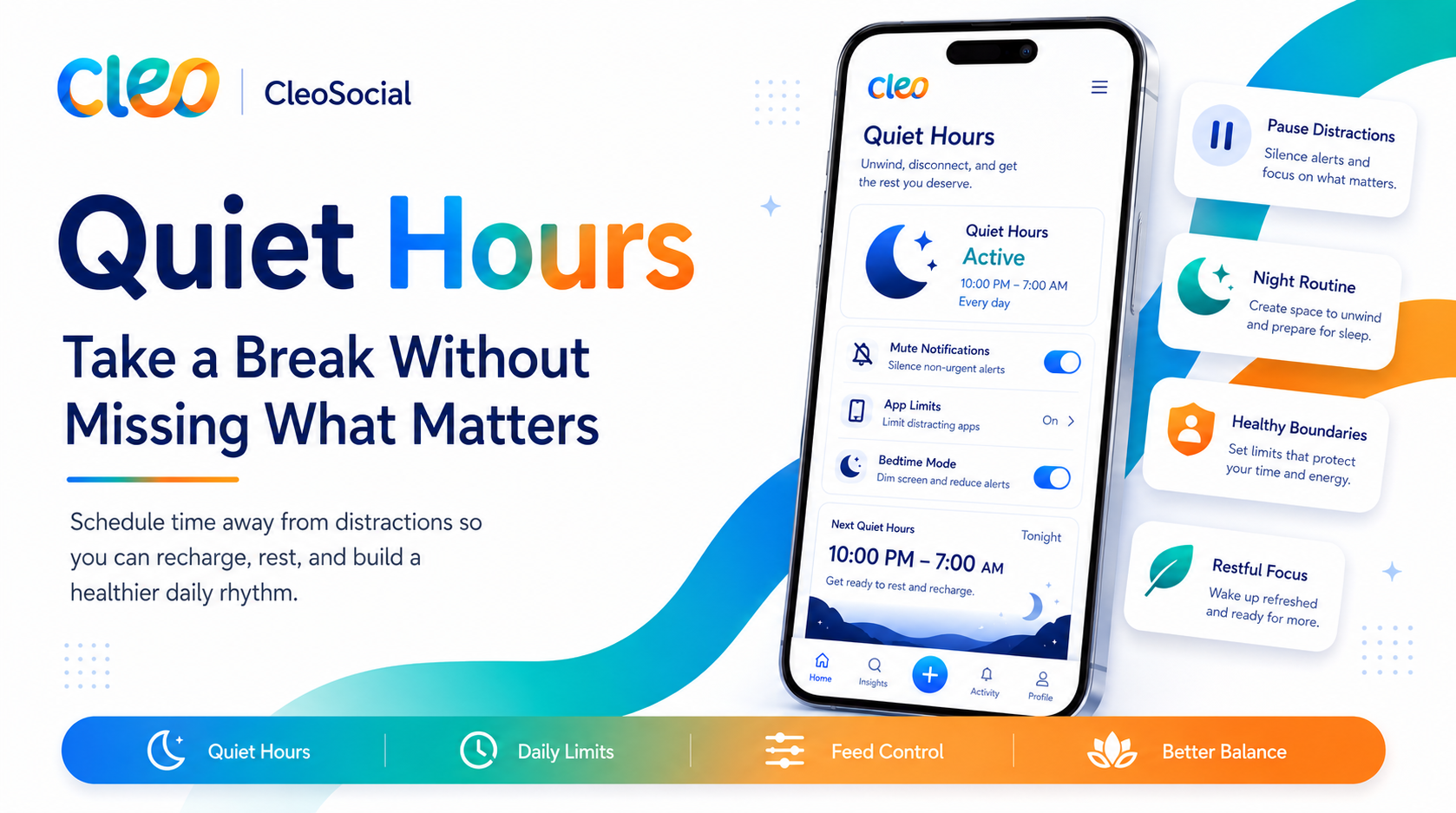
Table of Contents
How to Use CleoSocial Quiet Hours: Take Your Evenings Back
Quiet Hours is CleoSocial's built-in off switch. You choose a window — say, 9 PM to 7 AM — and during that window the app goes quiet: no notifications, no nudges, no pull back into the feed. When the window ends, everything is exactly where you left it.
It takes about a minute to set up. This guide covers the setup, the timing strategies that work best, and why Quiet Hours succeeds where ordinary screen-time limits keep failing.
What Quiet Hours Actually Does
During your Quiet Hours window:
- Notifications stop. The app does not ping, badge, or buzz you.
- The pull disappears. No alerts means no reflexive open. Most "quick checks" start with a notification; Quiet Hours removes the trigger.
- Nothing is lost. Posts, messages, and activity are all there when your window ends. Quiet does not mean missing out — it means catching up on your schedule.
And one thing it deliberately does not do:
- It does not lock you out. You can open CleoSocial during Quiet Hours any time you choose. Quiet Hours is your rule, and you outrank it. The app enforces your boundary against noise, not against you.
That last point is the design philosophy in miniature. Quiet Hours is not a timeout imposed on you. It is an instruction you give the app about when it is allowed to speak.
How to Set Up Quiet Hours
- Open CleoSocial and go to Settings.
- Find the Quiet Hours section.
- Choose a start time — for example, 9:00 PM.
- Choose an end time — for example, 7:00 AM.
- Save.
That is the whole setup. You can change the window whenever you like by returning to Settings — it is a dial you own, not a commitment you signed.
Choosing Your Window: Three Strategies
The right window depends on which hours you most want back. Three patterns cover most people:
The Evening Wall (most popular). Start Quiet Hours 60–90 minutes before bed and end it after your morning routine — for example, 9:30 PM to 7:30 AM. The last stretch of the evening and the first minutes of the morning are when the feed most easily takes over, because your defenses are lowest exactly when the scroll is easiest. A wall around both ends of the night returns them to you in one move.
The Deep-Work Block. A daytime window — say, 9 AM to noon — for focused work, study, or anything that deserves your full attention. The feed is a superb procrastination device precisely because it is always one tap away. During a Quiet Hours block, the tap still works, but nothing is calling for it.
The Anchor Hours. Shorter windows around moments you have decided matter: dinner, the gym, your commute reading, time with people. Thirty or sixty minutes where the app simply is not part of the room.
Start with one window, not three. Run it for a week, notice what changed, then adjust. Boundaries you tune stick better than boundaries you announce.
Why Quiet Hours Works Where Time Limits Fail
If you have ever set a screen-time limit and then tapped "Ignore Limit" fifteen seconds later, the problem was not your willpower. It was the design.
A time limit punishes you after the fact. It interrupts you mid-scroll, makes you the problem, and offers a button to dismiss itself — which you press, because the feed on the other side of the warning is still engineered to keep you there. The limit fights you, loses, and leaves you feeling worse for having lost.
Quiet Hours works from the opposite direction. It does not interrupt your scrolling; it removes the triggers that start unplanned scrolling in the first place. No notification, no reflexive open, no session to cut short. You are not resisting the feed during Quiet Hours. There is simply nothing tugging at you.
The deeper difference: a time limit treats you as the thing to be managed. Quiet Hours treats the app as the thing to be managed — by you. Same goal, opposite premise, and the premise is why it holds.
Pair Quiet Hours with Your Other Settings
Quiet Hours controls when the app can reach you. Your other CleoSocial settings control what reaches you when it does:
- Content ratings. Every post is rated G, PG, PG-13, or R before it hits your feed; R is filtered by default and you set the ceiling. Some people lower their ceiling to PG for the hour before their Quiet Hours start — a calmer feed as an off-ramp, then silence.
- Feed Control. Tune topics and content types so that when your window ends and you do open the app, the feed that greets you is the one you designed.
Together the three form a complete system: what you see, at what intensity, and when. Each dial is yours.
Making Quiet Hours Stick: Three Practical Notes
The setting works from the moment you save it, but a few practices make it work better.
Tell the app when, don't ask yourself whether. The quiet power of Quiet Hours is that it converts a nightly decision into a standing rule. Willpower decides one scroll at a time, and every decision is a chance to lose. A rule decides once. When 9 PM arrives, there is nothing to negotiate — you already voted, back when you were clear-headed in Settings.
Expect the phantom checks, and let them be funny. The first few nights, your thumb will reach for the app out of pure habit, find nothing calling, and hover. This is normal, mildly ridiculous, and short-lived. The reflex was built by notifications; without them, it fades on its own within days. Noticing it fade is its own small satisfaction — that was the leash, and it is visibly loosening.
Put something where the scroll was. An hour returns to your evening; evenings abhor a vacuum. The people who get the most from Quiet Hours decide in advance what the reclaimed time is for — the book, the stretch, the actual conversation. Not because the feature requires it, but because "time back" becomes real the moment it has somewhere to go.
None of this is a program or a philosophy. It is one setting plus a week of letting it work. The feature carries the load; these notes just keep you from carrying it yourself.
Common Questions About Quiet Hours
Can I open the app during Quiet Hours? Yes, always. Quiet Hours silences the app's side of the relationship — notifications and nudges. Your side stays fully open. It is a boundary you set, not a lock someone put on you.
Will I lose messages or posts from my Quiet Hours window? No. Everything is waiting when your window ends. Quiet Hours delays the noise, not the content.
Can I change or turn off my window? Any time, in Settings. Adjust it for weekends, travel, or a season of life that needs a different rhythm.
Does Quiet Hours cost anything? No. CleoSocial is free on the App Store, and Quiet Hours is a core feature, not an upsell.
How is this different from my phone's Do Not Disturb? Do Not Disturb silences everything on your phone, which is why most people rarely commit to it. Quiet Hours is surgical: it quiets one app — the one whose notifications most reliably turn into forty-five lost minutes — while calls, texts, and everything you actually need stay live.
A Sample Evening, Before and After
Here is what the feature looks like in an ordinary life, because the mechanics only matter if the evening changes.
Before. 9:15 PM, you are winding down. A notification lights the screen — someone reacted to your post. You check it. The feed is right there, so you scroll a little. A few threads later it is 10:40, you are more awake than you were at 9, and the wind-down has to start over. Nothing dramatic happened. The evening just leaked.
After. Quiet Hours starts at 9. The 9:15 notification never fires — it is waiting for morning. Without the trigger, the reflexive check never happens, and whatever you were doing at 9:15 continues being what you are doing. If you genuinely want to scroll at 9:15, you still can; you open the app on purpose, which turns out to be a different act entirely. Scrolling you chose feels like leisure. Scrolling that chose you feels like leakage.
Multiply that by a week and the arithmetic gets loud: an hour a night recovered is seven hours a week, returned not by discipline but by one setting. You did not get stronger. You just stopped being interrupted.
That is the honest pitch for Quiet Hours. It is not a wellness program or a promise to change your life. It is a switch that makes the app hold its tongue during hours you name — and it turns out most of the battle was the app speaking first.
The Bottom Line
Quiet Hours takes a minute to set up and gives you back the hours you had been losing to the reflexive check. Pick a window, save it, and the app respects it — no notifications, no pull, nothing lost, and the door still opens whenever you say so.
The scroll finally has boundaries. Yours.
Download CleoSocial free from the App Store, or visit cleosocial.app — setup, Quiet Hours included, takes about five minutes.
Ready for Social Media That Respects You?
CleoSocial puts you in control. Content ratings, time limits, and real connections. Free to use, always.

Continue Reading

How to Set Up CleoSocial for the New School Year
September 3, 2026
One Month on CleoSocial: What Changes, What Doesn't, What Surprises
August 29, 2026