How to Set Up CleoSocial Feed Filters: A Step-by-Step Guide
How to set up CleoSocial feed filters — this guide walks you through every step. If you just downloaded the app or you are still thinking about it, this...
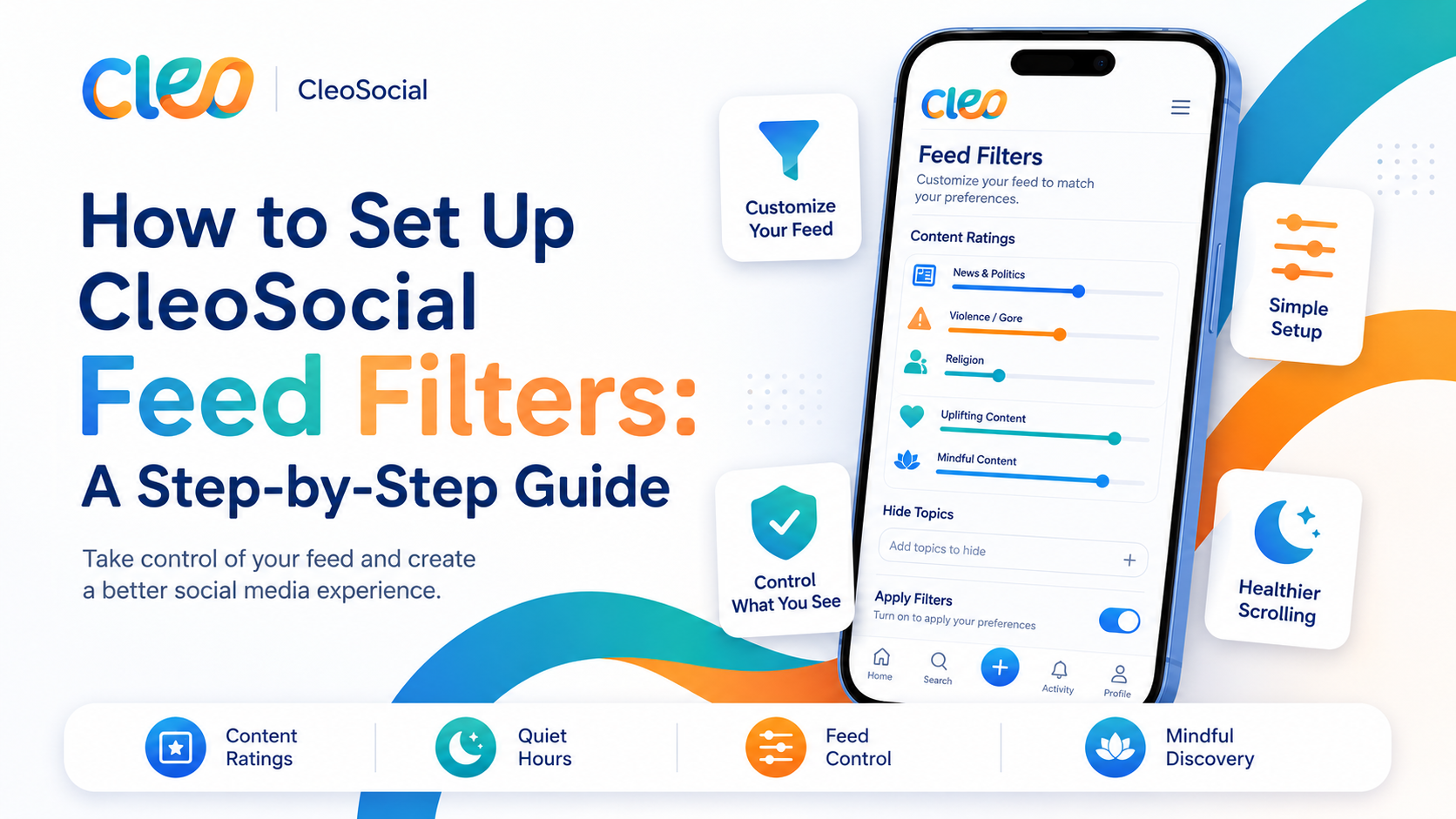
Table of Contents
How to Set Up CleoSocial Feed Filters: A Step-by-Step Guide
How to set up CleoSocial feed filters — this guide walks you through every step. If you just downloaded the app or you are still thinking about it, this article shows you exactly how the filter system works and how to get your feed to a place that feels right for you.
Setup takes about five minutes. After that, CleoSocial's AI runs the filters in the background every time you scroll.
How CleoSocial Feed Filters Work
CleoSocial's AI guardian, Cam, rates every post before it reaches your feed. The rating system works like movie ratings:
- G — content suitable for all ages, low intensity
- PG — general content, slightly more varied
- PG-13 — more mature content, some intensity
- R — graphic, intense, or mature content
R-rated posts are filtered out by default. You choose the ceiling for the rest. Your feed only shows content at or below the level you set.
This is not a manual block-and-mute system. You set your level once, and the AI does the rest automatically every time you open the app.
Step 1: Download and Sign Up
If you have not already done this:
- Open the App Store on your iPhone.
- Search for "CleoSocial."
- Tap Get — it is free.
- Open the app and create your account with your email and a password.
No credit card needed. The app is free to download and use.
Step 2: Set Your Content Rating Level
This is the most important step. After signing up, the app will walk you through initial preferences.
To set or change your content rating:
-
Go to Settings inside the app.
-
Find the Content Rating or Feed Settings section.
-
Choose your preferred rating ceiling:
- G — the most filtered option; ideal if you want a very calm feed or are setting up for a child
- PG — a good balance for adults who want a gentle feed without locking out all variety
- PG-13 — suitable for most adults who want filtering without heavy restrictions
-
Save your selection.
Cam now filters every post against that ceiling before it hits your feed.
Tip: If you are not sure where to start, choose PG. You can always adjust up or down once you see how your feed feels.
Step 3: Use Feed Control to Refine Your Content
Beyond rating levels, Feed Control lets you choose what types of posts show up in your feed. Think of this as the content-category layer on top of the rating filter.
- Go to Settings or your feed preferences.
- Find the Feed Control section.
- Select the content categories you want to see.
- Deselect the categories you want to avoid.
- Save your changes.
For example, if certain topic areas tend to trigger your scrolling spiral, you can reduce or remove them here. Your feed becomes a reflection of what you actually want to see.
Step 4: Set Up Quiet Hours
Quiet Hours tells CleoSocial when to go quiet. During the window you set, the app will not send notifications and is designed to let you step away without being pulled back.
To set Quiet Hours:
- Open Settings.
- Find the Quiet Hours section.
- Choose a start time — for example, 9:00 PM.
- Choose an end time — for example, 7:00 AM.
- Save the setting.
Good time windows to start with:
- Bedtime protection: 9 PM to 7 AM — keeps the app quiet when you should be sleeping
- Work focus: Set a block during your core work hours if you tend to pick up your phone when you should be working
- Family time: Set a block during dinner or family activities
You can set different Quiet Hours for different needs. Check the app's settings for the exact options available to you.
Step 5: Explore Mindful Discovery
Once your filters and Quiet Hours are set, try the Mindful Discovery section. This is how you browse for new content in CleoSocial.
Unlike discovery on most social apps, Mindful Discovery is not driven by an algorithm trying to maximize your time in the app. It surfaces content based on your stated preferences.
Explore it when you have a moment — start with topics you genuinely enjoy. Over time, your feed will get more useful.
How to Adjust Your Filters Later
Your preferences are not permanent. You can update them any time:
- Open Settings.
- Change your content rating, Feed Control selections, or Quiet Hours.
- Save.
If your first settings feel too strict or too loose, adjust them. The point is to find a balance that works for your life.
Common Questions About CleoSocial Feed Filters
Can I override Quiet Hours? Check the app's settings for the exact behavior. Some users find it helpful to leave the feature on even if they occasionally override it — the friction of having to change a setting is often enough to interrupt a mindless scroll.
Does the AI ever make mistakes? Yes. AI content ratings are not perfect. A post that should rate R might occasionally get PG-13. CleoSocial does not claim 100% accuracy. Use the filter as a strong baseline, not an absolute guarantee.
Is Feed Control the same as muting topics? They are similar but not identical. Feed Control shapes the types of content that appear overall. For more granular control, explore the full settings menu inside the app.
How to Set Up CleoSocial Feed Filters: Quick Summary
- Download the app (free on the App Store)
- Create your account
- Go to Settings → set your content rating ceiling (G, PG, or PG-13)
- Go to Feed Control → choose your content categories
- Go to Quiet Hours → set your quiet window
- Explore Mindful Discovery for new content you actually want
Five minutes of setup, and your feed reflects your choices — not an algorithm's guess.
Download CleoSocial free from the App Store, or visit cleosocial.app to learn more before you start.
Adjusting Your Settings Over Time
Your first settings do not have to be perfect. The app is built so you can change things easily. Here is how to approach the first few weeks.
In the first two or three days, use whatever settings you chose during setup. Get a feel for how your feed looks and how it makes you feel. Notice which types of content still bother you. Notice what feels missing.
After a few days, go back to settings and adjust. If G feels too restrictive, raise it to PG. If PG-13 still leaves you with content that upsets you, lower it to PG. Adjust Feed Control to add categories you enjoy and remove ones that drain you.
Check your Quiet Hours setting. Did it work? Did you find yourself opening the app during times when you had meant to step away? If yes, consider whether you need a stricter window or whether the window you set is already helping.
The goal is a feed that serves your actual life, not a theoretical ideal. That usually takes a few days of adjusting to get right.
Troubleshooting Your Feed Filters
My feed feels empty. This usually means your content level is set too strictly. If you chose G and find the feed sparse, try PG. You can also expand your Feed Control selections to include more content categories.
I am still seeing content that upsets me. This can mean the AI made a rating mistake, or it can mean the content category is still turned on in Feed Control. Check both settings. Lower your content level or turn off the category in Feed Control.
Quiet Hours does not seem to be working. Go back to Settings and confirm the times are saved. Also check your iPhone notification settings for CleoSocial to make sure they are consistent with your Quiet Hours settings.
I want to allow R-rated content. You can change this in settings. R is off by default. If you want to allow it, you can turn it on. But most users find the feed is better without it.
Making Feed Control Work for You
Feed Control is one of the most useful features in CleoSocial because it goes beyond the content rating. The rating tells you how intense the content is. Feed Control tells you what kinds of content appear at all.
Think of it this way. The content rating is like a volume control. It manages how intense the material is. Feed Control is like a channel selector. It manages which topics you see at all.
Using both together gives you the most refined feed. Set your content ceiling with the rating. Then use Feed Control to remove topic categories that tend to drain you or pull you into a scroll spiral. What is left is a feed shaped by two layers of your own choices.
What Mindful Discovery Adds
After your feed is set up, Mindful Discovery is the next thing to explore. This is how you find new content and new accounts to follow. It is designed to show you things you asked for, not things the app thinks will keep you online.
To use it well, start by being specific about what you enjoy. If you like content about nature, cooking, or a particular hobby, look for that in discovery. The more specific you are, the more the discovery results match what you actually want.
Avoid using discovery during times when you are bored and just want stimulation. That is when most social apps lead you toward content that is engaging but not good for you. Use discovery when you have a clear idea of what you want to add to your feed.
How to Set Up CleoSocial Feed Filters: You Have Everything You Need
Content rating, Feed Control, and Quiet Hours are the three settings that matter most. Set all three during your first session. Adjust them after a few days. Use Mindful Discovery to add content you actually want.
That is the complete setup. Five minutes to start. Five minutes to refine. From that point, your feed runs on your rules.
Download CleoSocial free from the App Store or visit cleosocial.app to learn more.
Ready for Social Media That Respects You?
CleoSocial puts you in control. Content ratings, time limits, and real connections. Free to use, always.

Continue Reading
How to Sign Up for CleoSocial: Step by Step
June 20, 2026
How to Download CleoSocial and Set Up Quiet Hours: A Simple Guide
May 28, 2026