How to Download CleoSocial and Set Up Quiet Hours: A Simple Guide
This guide covers both steps. If you have decided to try the app and want to get your feed set up quickly, you are in the right place. The whole process...
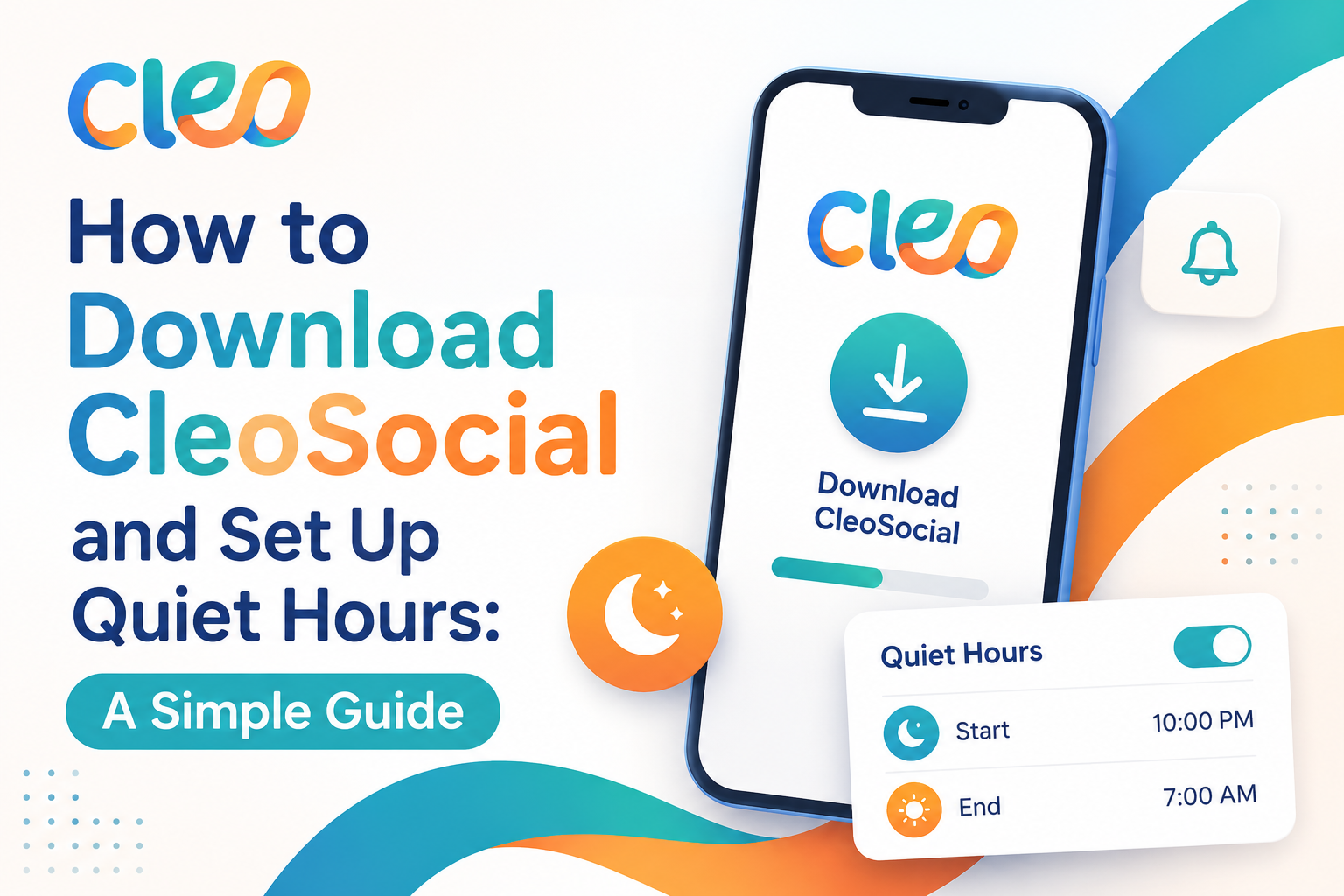
Table of Contents
How to Download CleoSocial and Set Up Quiet Hours: A Simple Guide
This guide covers both steps. If you have decided to try the app and want to get your feed set up quickly, you are in the right place. The whole process takes about five minutes.
How to Download CleoSocial
CleoSocial is available on the Apple App Store. Here is how to get it:
- Open the App Store on your iPhone or iPad.
- Tap the Search tab at the bottom of the screen.
- Type "CleoSocial" in the search bar.
- Find the CleoSocial app in the results. The icon shows the app's mascot, Cam.
- Tap Get. The app is free — no payment required.
- Use Face ID, Touch ID, or your Apple ID password to confirm the download.
- Wait for the app to finish installing. It only takes a moment.
That's it. CleoSocial is now on your phone.
You can also visit cleosocial.app and follow the link to the App Store if you prefer to start from the website.
How to Create Your CleoSocial Account
Once the app is installed:
- Open CleoSocial from your home screen.
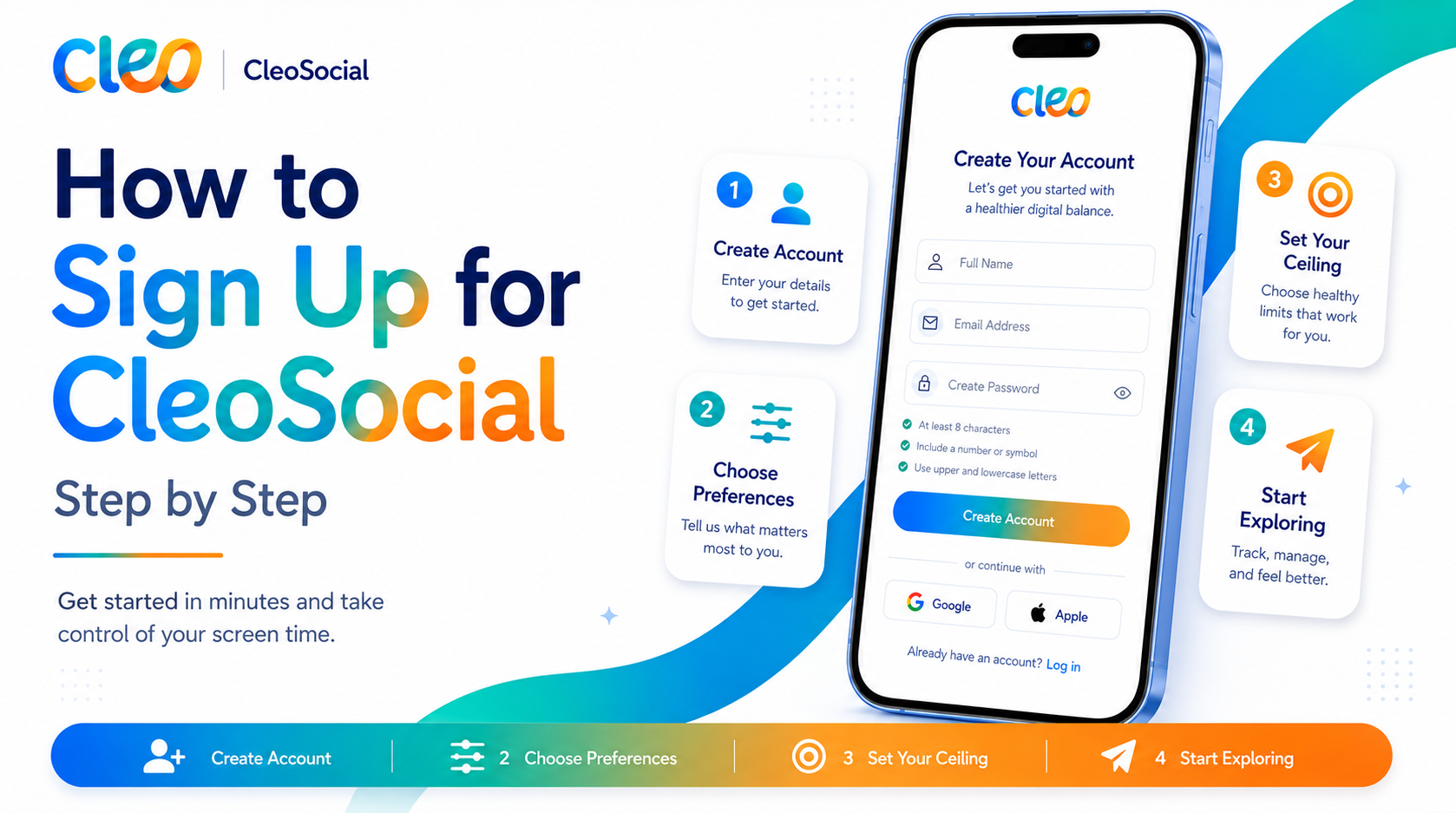
- Follow the on-screen steps to create your account. You will enter an email address and create a password.
- Verify your email if prompted.
- You are now signed in.
The account setup is quick. You do not need a credit card or payment information. The app is free.
How to Set Your Content Rating Level
After you create your account, CleoSocial will guide you to set your content preferences. This is the most important step — it tells the app what you want to see.
CleoSocial's AI guardian, named Cam, rates every post G, PG, PG-13, or R. R-rated content is filtered out by default. You can also choose to allow only G or PG content if you want a gentler feed.
To set your content level:
-
Go to your settings or preferences inside the app.
-
Find the content rating section.
-
Choose the highest rating level you want to see in your feed. For example:
- Choose G for the most filtered feed
- Choose PG if you want slightly more variety while still avoiding mature content
- The default filters R-rated content automatically
-
Save your settings.
From this point on, Cam reviews posts and filters your feed based on your chosen level.
How to Set Up Quiet Hours
Quiet Hours is one of CleoSocial's most useful features. It lets you set a time window when the app goes quiet — no notifications, no temptation to scroll.
Here is how to set it up:
- Open CleoSocial and go to Settings.
- Find the Quiet Hours section.
- Choose a start time — for example, 9:00 PM.
- Choose an end time — for example, 7:00 AM.
- Save the setting.
During your Quiet Hours window, the app will not interrupt you. This is helpful if you want to stop scrolling before bed, protect your morning routine, or carve out time during the day when you don't want distractions.
You can update your Quiet Hours any time by going back to Settings.
How to Set Up Feed Control
Feed Control lets you choose what types of content appear in your feed. Here is how to adjust it:
- Open CleoSocial and go to Settings or your feed preferences.
- Find the Feed Control section.
- Choose the content types you want to see.
- Save your preferences.
This is different from content ratings — Feed Control is about the category of content, not just the maturity level. Use it to shape your feed so it shows you things you actually want.
Quick Tips for Getting the Most Out of CleoSocial
Start with a stricter setting. If you are not sure what level to pick, start with G or PG. You can always loosen it later. It is easier to open up than to feel like you made the filter too loose.
Set Quiet Hours for your trouble spots. Think about when you scroll the most and feel worst afterward. Late night? First thing in the morning? Set Quiet Hours around those times first.
Give it a week. Your feed will feel different right away, but it takes a few days to get a real sense of how the app works for your habits.
Check the site for updates. CleoSocial is still growing. Visit cleosocial.app for the latest information on features and any new options that may have been added.
Is CleoSocial Really Free?
Yes. CleoSocial is free to download from the App Store. There is no subscription, no paid tier, and no credit card required. You sign up, set your preferences, and use the app at no cost.
You Are Ready to Get Started
Here is the short version:
- Search "CleoSocial" in the App Store → tap Get (free download).
- Create your account (email, password).
- Set your content rating level in preferences.
- Go to Settings → Quiet Hours → set your start and end time.
- Adjust Feed Control to choose your content types.
That's the full setup. Five minutes, and you have a social media feed that works for you instead of against you.
Download CleoSocial now from the App Store, or visit cleosocial.app to learn more about what the app can do.
What to Expect After You Set Up
After you finish setup, your feed looks different right away. The posts that used to appear — the ones that might have been graphic, upsetting, or just overwhelming — are gone. What remains is the content at or below your chosen rating level.
This change is immediate. You set the content level, and Cam starts filtering from that moment. You do not need to train the AI or give it feedback. It works from the rating system, not from your personal history.
You may want to adjust your settings after your first few days. If G feels too restricted and you are missing content you liked, raise the level to PG. If PG-13 still feels too intense, lower it to PG. The settings are easy to change in the app.
Quiet Hours: Going Deeper
Quiet Hours is one of the features that sets CleoSocial apart from most social apps. Most apps are designed to pull you back in at all hours. CleoSocial is designed to let you step away.
Here is how to think about which Quiet Hours to set.
Bedtime protection. If you tend to scroll at night and it affects your sleep, set Quiet Hours to start at nine or ten PM and end when you wake up. This removes the notification trigger that often starts a late-night session.
Morning protection. If you want to start your morning without social media, set Quiet Hours to end at eight or nine AM. This means the app stays quiet until you have had time to wake up and prepare for your day.
Work focus. If you work from home or find yourself picking up your phone too often during the day, set a Quiet Hours block during your core work hours.
Family time. Set a Quiet Hours block during dinner or weekend mornings if you want to be fully present during those times.
You can adjust Quiet Hours any time. Go to Settings inside the app and update the start and end times.
Feed Control: How to Use It
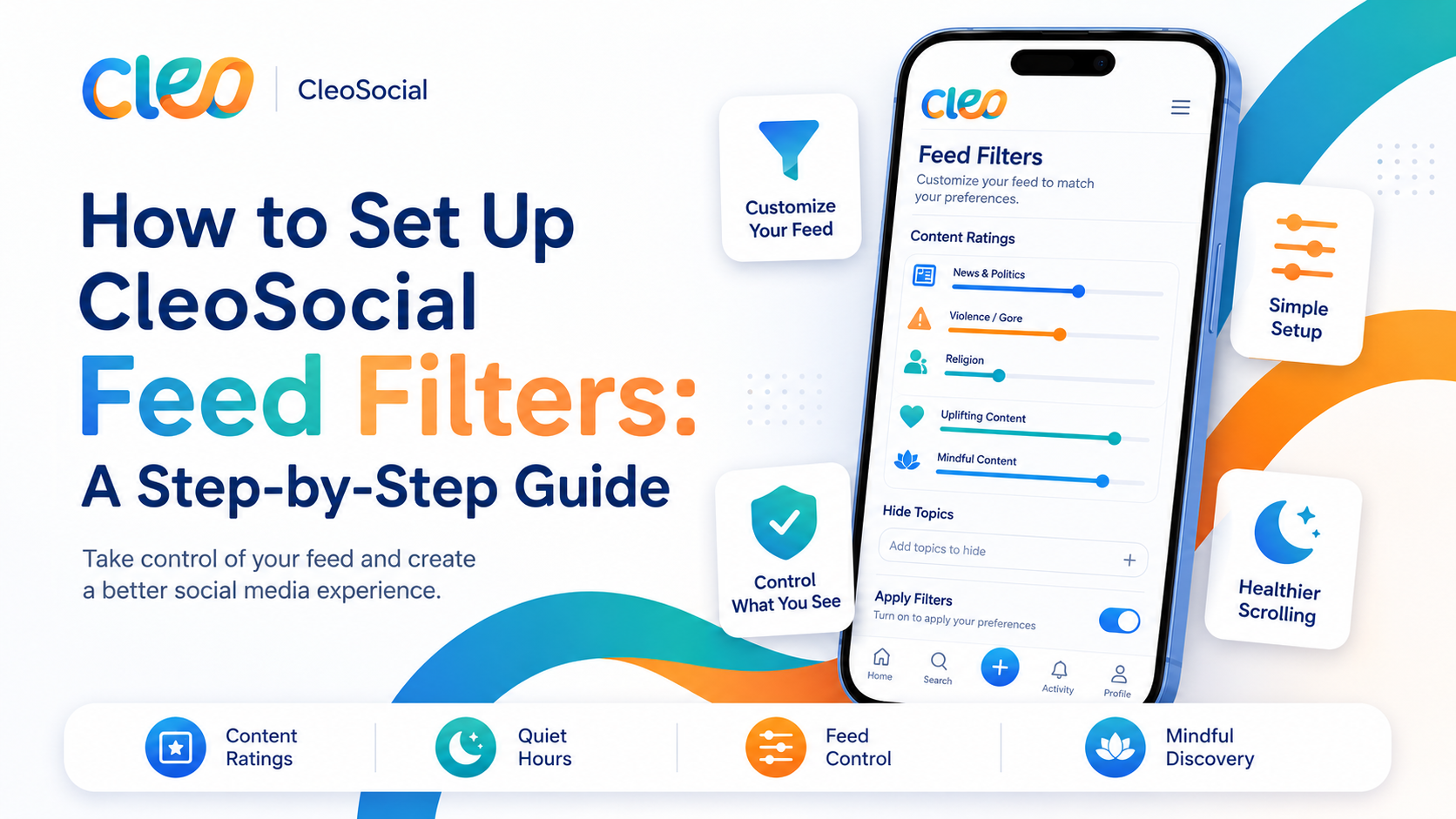
Feed Control adds another layer on top of the content rating. It lets you choose what types of content appear, not just what intensity level is allowed.
Go to Settings and find the Feed Control section. You will see content categories. Turn on the ones you want. Turn off the ones you do not. Your feed updates to reflect your choices.
A practical approach: start with a narrow set of categories that you genuinely enjoy. Add more over time as you get a feel for what works for your mood and habits. You are building a feed that serves you, not one that an algorithm built to keep you online.
Mindful Discovery
When you want to find new content to follow, the discovery section in CleoSocial shows you options based on your preferences. This works differently from most social apps where discovery is powered by an engagement algorithm.
On most platforms, discovery shows you content that is likely to get a strong reaction from you, because strong reactions keep you in the app. CleoSocial shows you content that matches what you said you wanted.
Try the discovery section after you have used the app for a few days. By that point you will have a clearer sense of what kind of feed feels right, and you can use discovery to build on it.
Troubleshooting Common Setup Questions
I set Quiet Hours but I still see notifications. Double-check that you saved the settings. Go back to Settings and confirm the start and end times are correct. Also check your iPhone's notification settings for CleoSocial to make sure they are consistent.
My feed feels too empty. If you set the content level to G and find the feed sparse, try raising it to PG. You can also use Feed Control to add more content categories.
I want to change my content level. Go to Settings inside the app and update your rating ceiling. Changes take effect immediately.
How do I find the app again after closing it? It is on your iPhone home screen or in your App Library. Search for CleoSocial if you cannot find the icon right away.
How to Download CleoSocial and Set Up Quiet Hours: You Are Ready
The process is simple. Download free from the App Store. Create your account. Set your content rating level. Turn on Quiet Hours. Adjust Feed Control. Five minutes total.
Visit cleosocial.app if you want more details before you start.
Ready for Social Media That Respects You?
CleoSocial puts you in control. Content ratings, time limits, and real connections. Free to use, always.